Remote control
Loading your Boards…LIVE NFL SCOREBOARDS
A live NFL scoreboard on any TV.
Follow one matchup or every game in the league, with live scores, game clocks, possession, down and distance.
No app. No account. Just open it and watch.
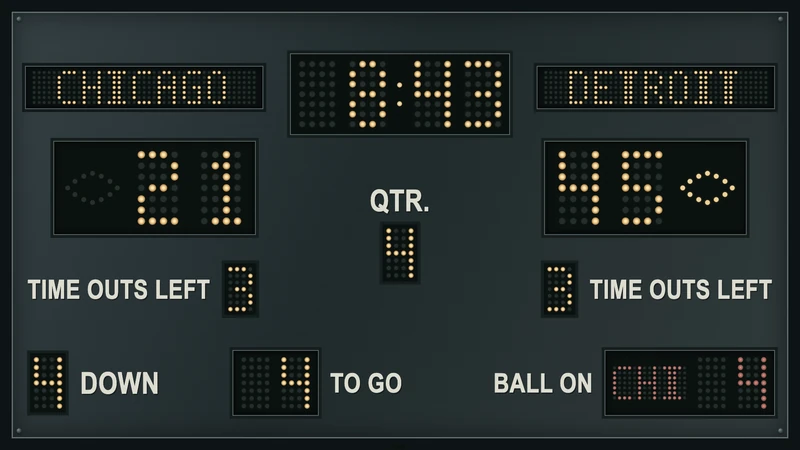
Historical demonstration with a reconstructed clock countdown. Detroit leads Chicago 45–21. Amon-Ra St. Brown catches a four-yard touchdown from Jared Goff at 7:58 in Q4. After the celebration and play summary, Detroit leads 51–21 before the extra point. The scoreboard holds for four seconds before the next slide.
The game on one screen.
The scoreboard on another.
Watch the broadcast on your TV and follow the scores on a screen beside it. A spare TV, monitor, or laptop can show one matchup or the entire league.
Open the scoreboard ↗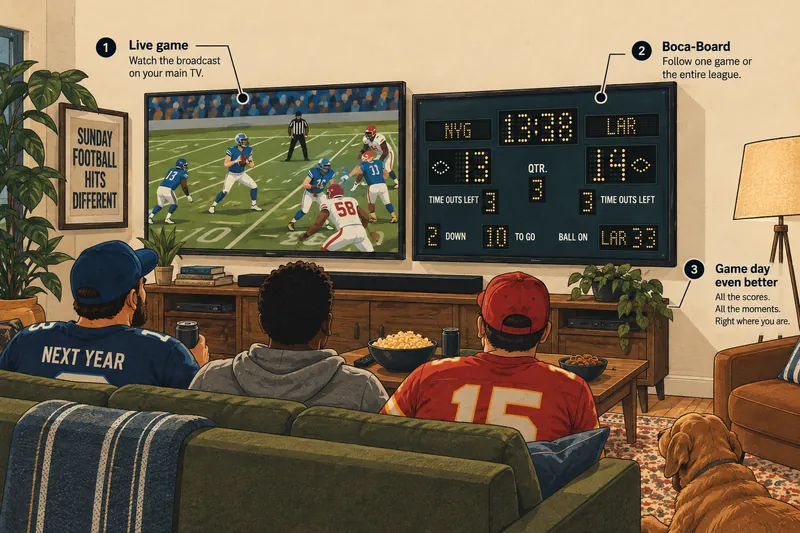
Pick a screen.
Put Boca-Board on it.
A spare TV, monitor, or laptop makes a great scoreboard. Boca-Board runs in a web browser—on the screen itself, or on a computer connected to it.
On that device, visit boca-board.com and select Open the scoreboard.
Your screen
Displays the scoreboard.
A browser or Player
Runs Boca-Board on that screen.
Your phone Optional
Controls which games it shows.
Ways to put Boca-Board on another screen
| What you have | How to use it |
|---|---|
| TV with a browser | Open the Boca-Board.com website in the TV’s browser and select “Open the scoreboard.” If the browser has trouble, use a computer and HDMI instead. |
| TV + computer | Connect a laptop, Mac or PC to the TV with HDMI. Open the scoreboard on the computer, then mirror its display or move the browser window onto the TV. |
| Spare monitor | Connect it to a computer and move the scoreboard window onto it. An HDMI cable or a suitable display adapter is all you need to make the connection. |
| Old laptop or desktop | That iMac in the closet could have a Sunday job. If it can run a modern browser, open the scoreboard on its own screen. |
| Projector | Connect a computer to the projector and put the scoreboard on the wall. Open it in the computer’s browser and use full-screen mode. |
| Roku, Apple TV or Google TV app Coming soon | Dedicated TV apps are planned. For now, use a compatible TV browser or a computer connected by HDMI. |
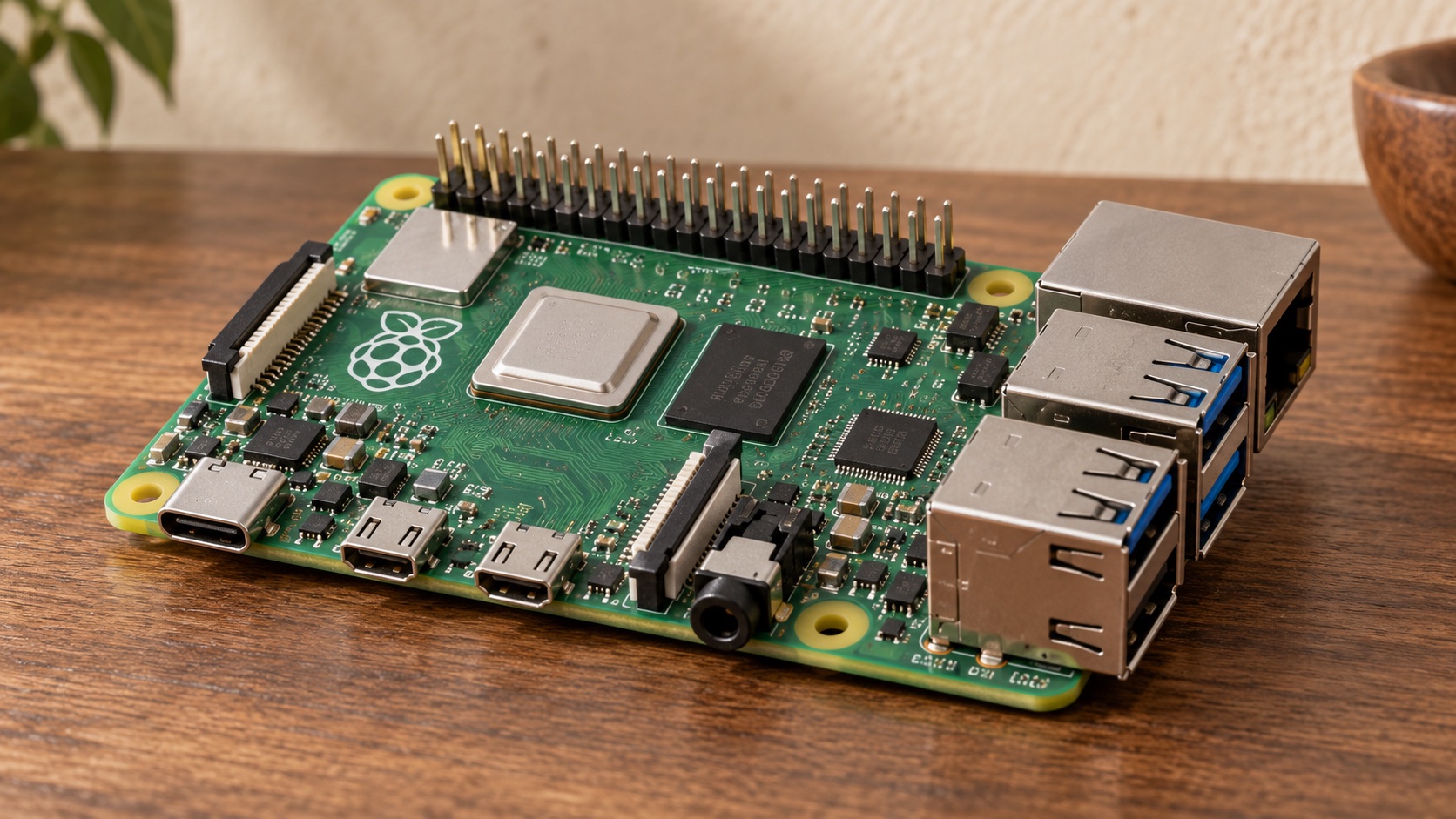
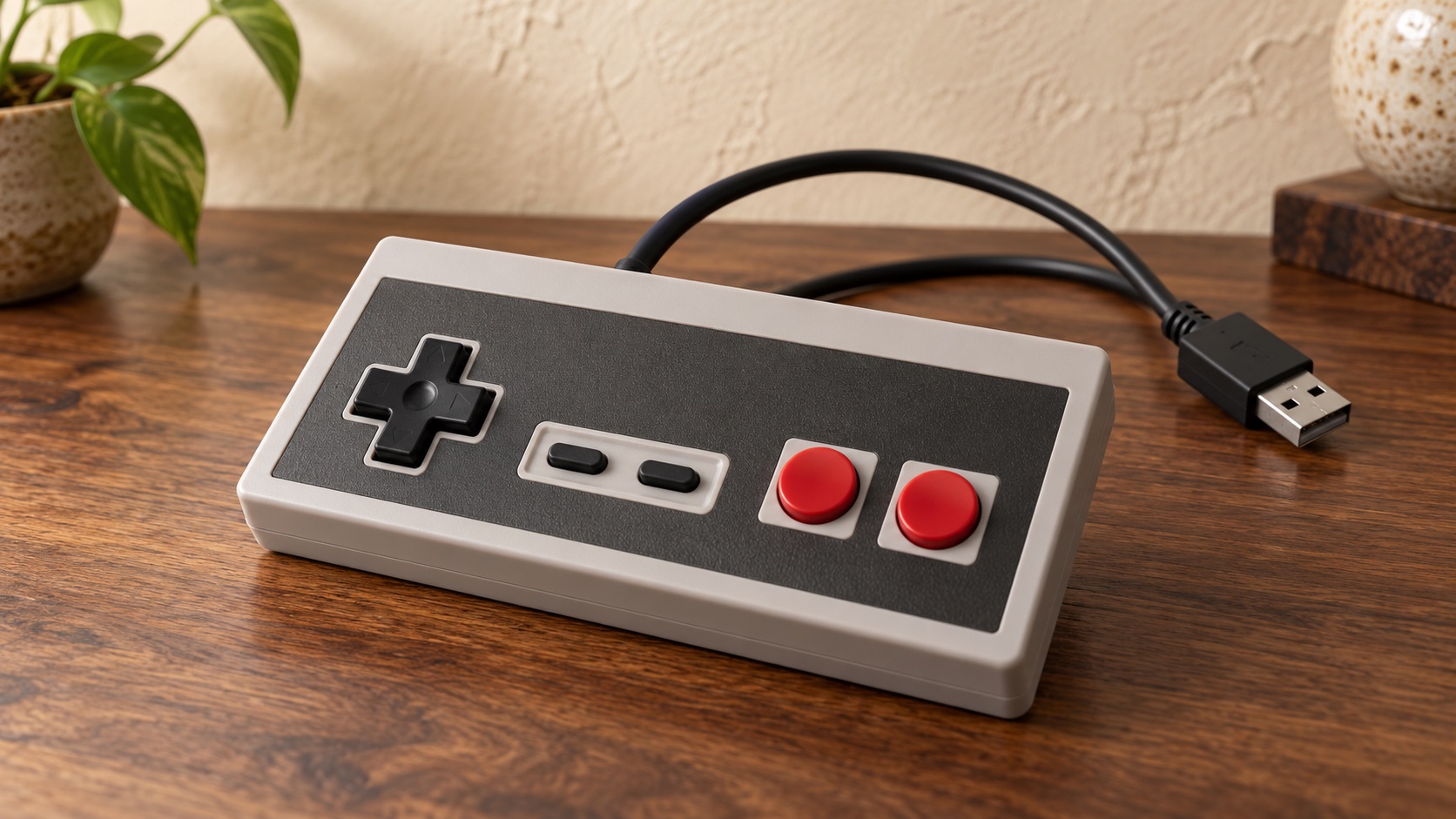
| Raspberry Pi + Boca-Board Player In beta | Turn a Raspberry Pi into a dedicated scoreboard player. Connect it to a TV or monitor with HDMI, set up Wi-Fi from your phone, and choose games with your phone or a USB gamepad. Explore the Player beta → |
See screen connection instructions with pictures →
Got a spare TV? Give it a permanent scoreboard.
FOR RASPBERRY PI IN BETA
Boca-Board Player
Switch on. Scoreboard on.
 +
A Raspberry Pi is a small computer that plugs into your TV’s HDMI port. Boca-Board Player makes it start directly in the scoreboard.
Set up Wi-Fi from your phone. Then choose games with your phone or a USB gamepad.
Ask about the beta ↗Current beta: Raspberry Pi 4 (4 GB), an HDMI TV or monitor, and an internet connection.
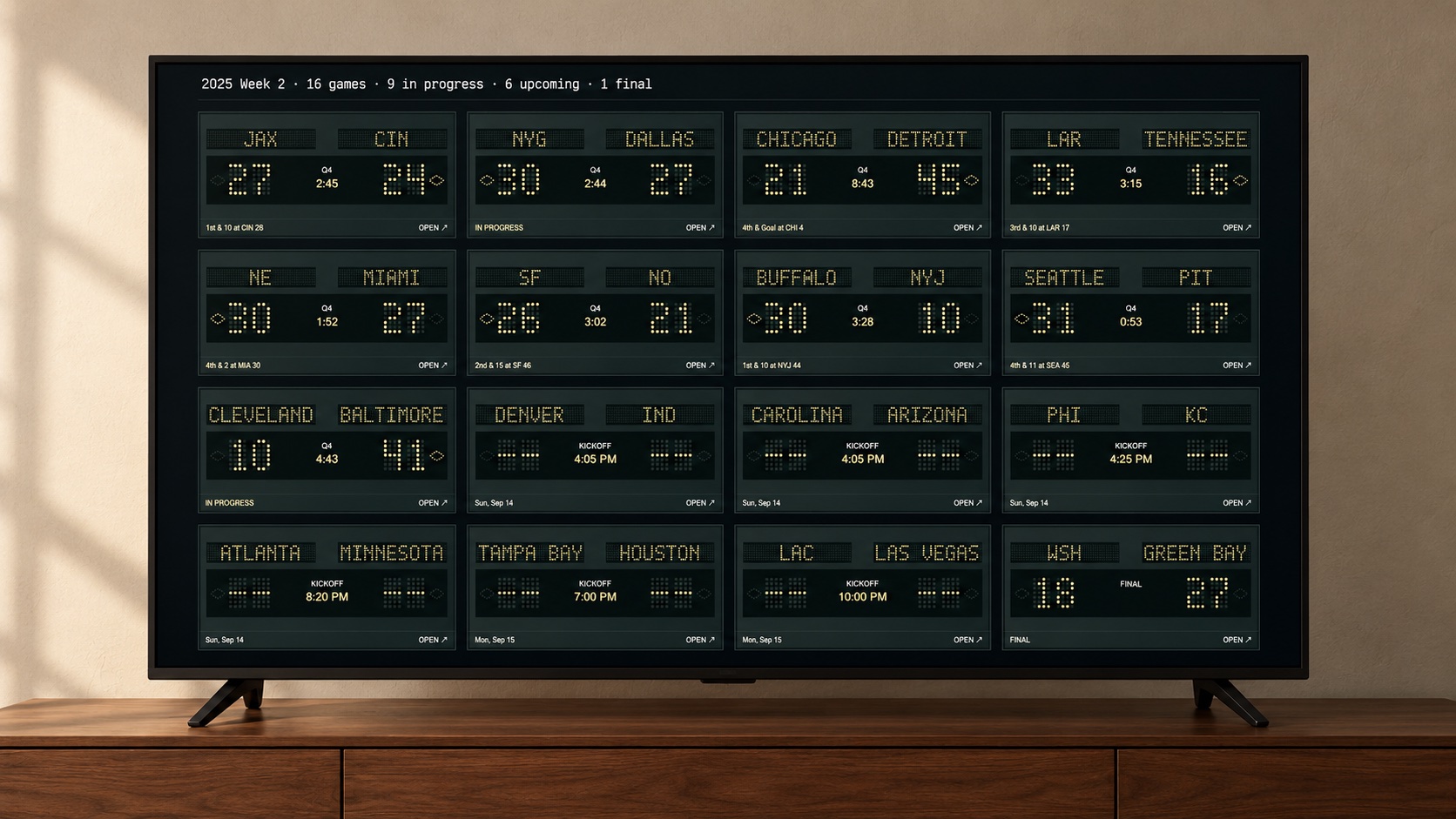
Start with every game.
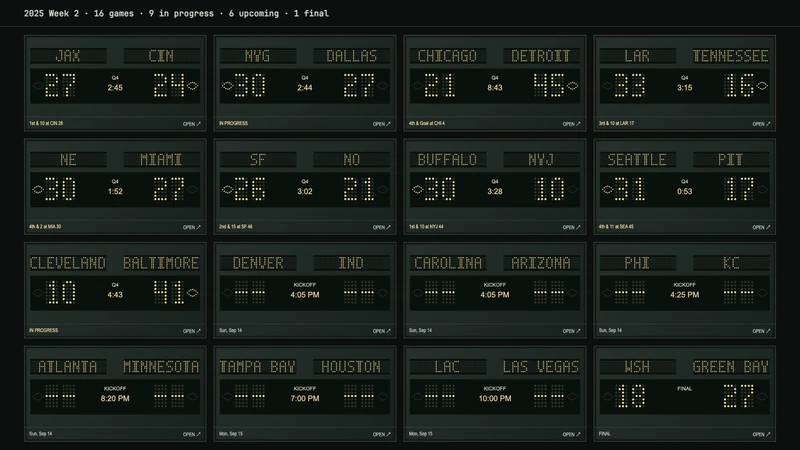
Boca-Board opens with the full league. Click any matchup to give that game the whole screen.
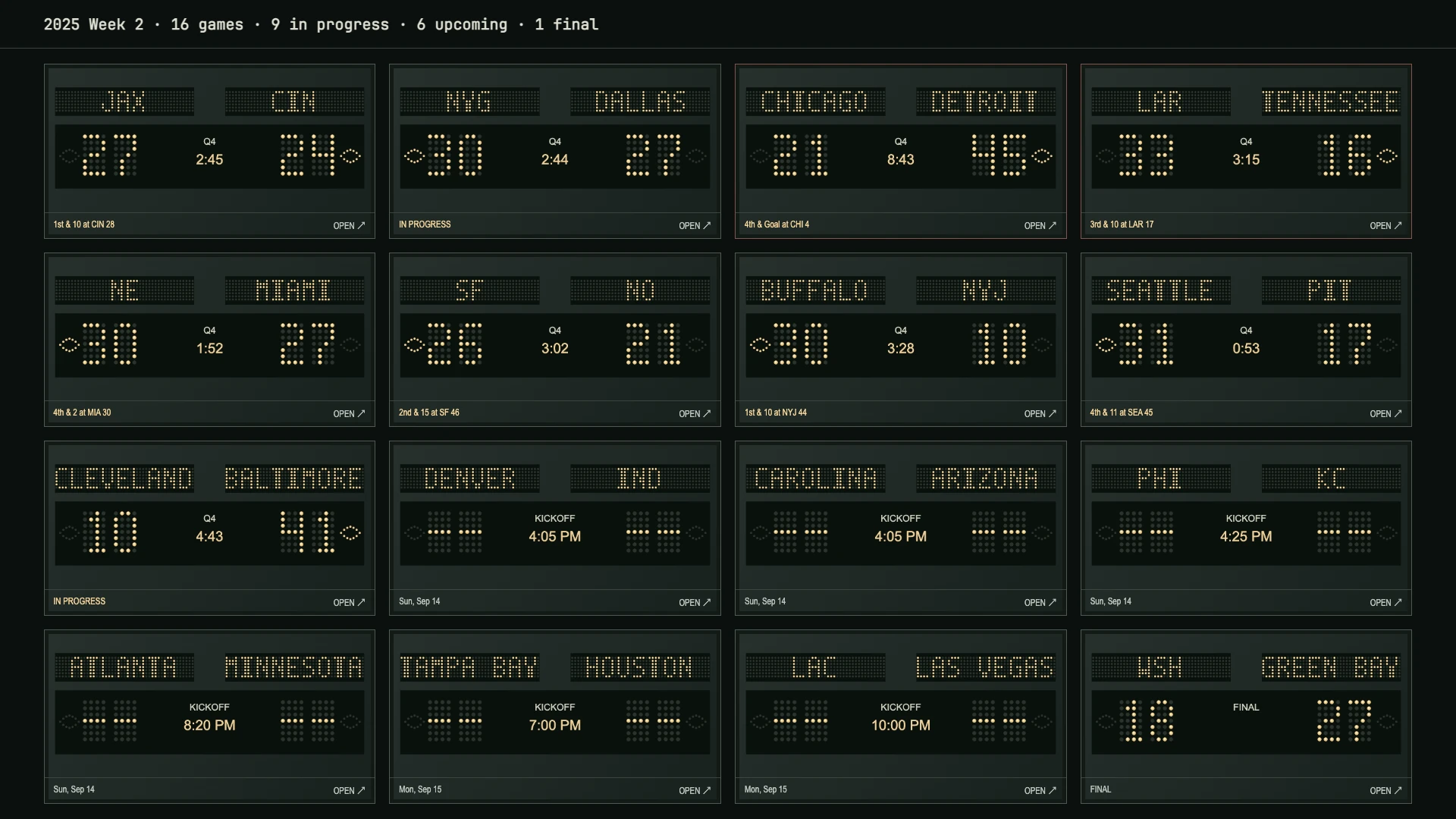
All Games
Keep an eye on the entire league.
Single Game
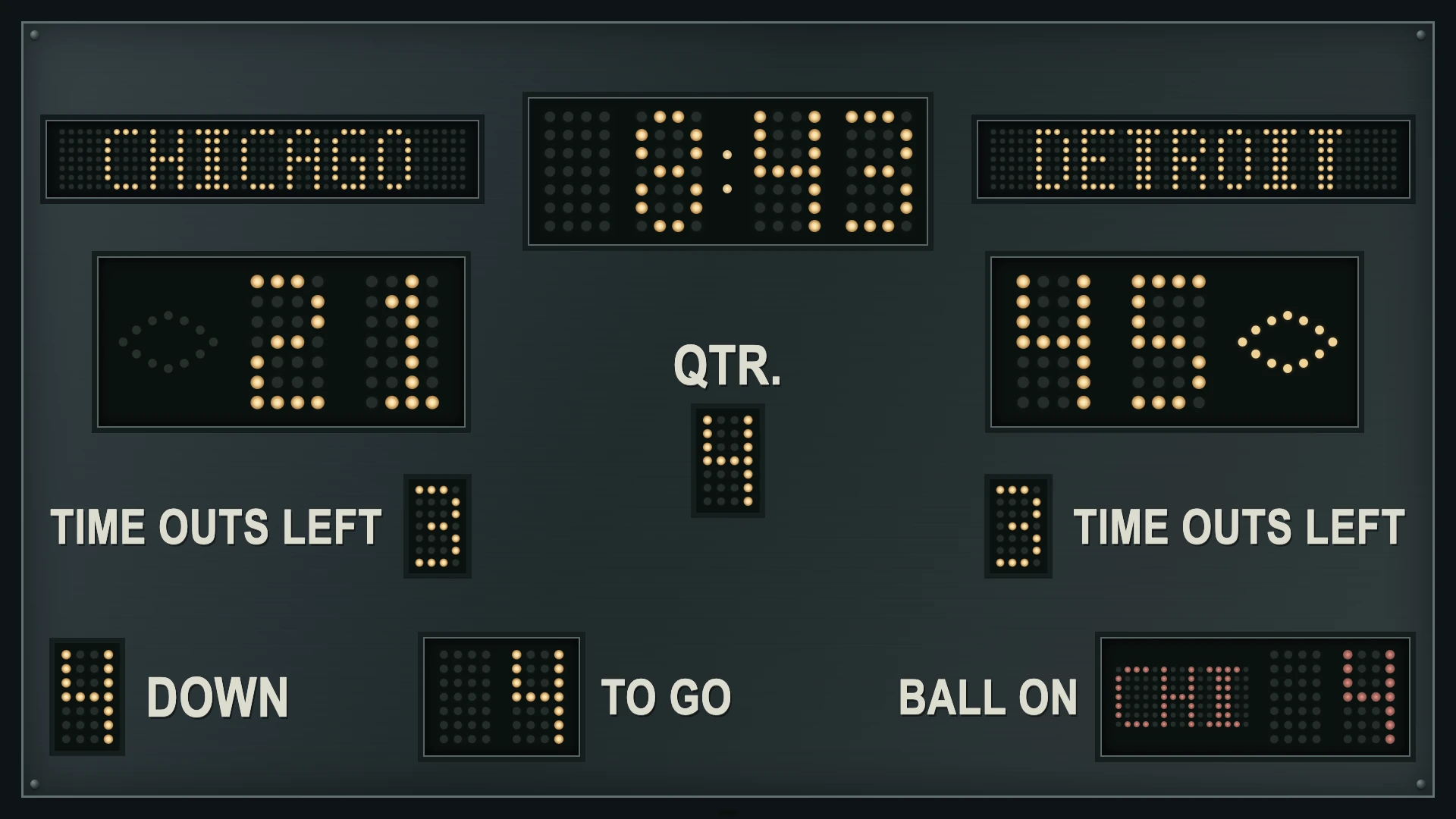
Click a matchup to fill the scoreboard with one game.
September 14, 2025 · Detroit leads Chicago 45–21, fourth-and-goal at the Chicago 4. Both views use the same historical Week 2 snapshot, just before Detroit’s final touchdown. Clocks show the last recorded play.
SCOREBOARD STYLES
Pick your scoreboard.
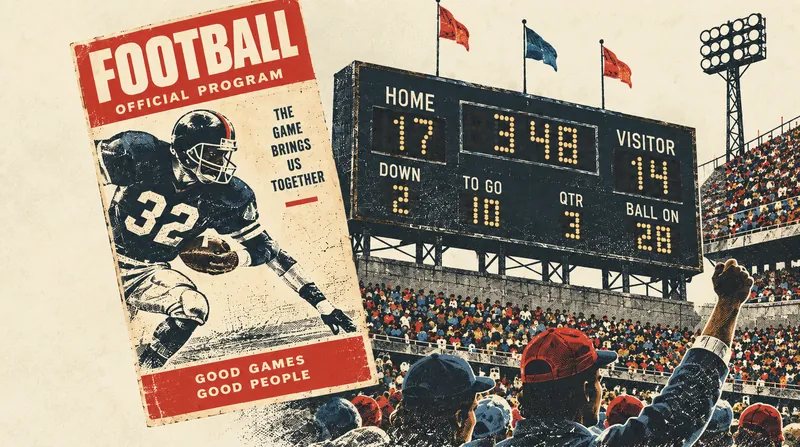
Start with Classic Lamp: glowing lamps and old-school stadium character.
More scoreboard styles are coming soon.
It follows the game.
Boca-Board updates as the game changes, so the screen beside your TV stays useful from kickoff to the final.
Live scores
Scores update automatically throughout the game.
Game status
See the clock, quarter, possession, down and distance when the data is available.
Broadcast timing
A built-in delay helps account for broadcasts running behind the feed. Exact timing varies with your stream.
Game moments
Supported events can trigger scoreboard animations and Tecmo-style celebrations.
Your phone can be the remote.
You don’t need an account to watch. If you want to change games from the couch, connect your phone anytime.
Select “Control with a phone” on the scoreboard. Scan the QR code, sign in, and control what’s on the screen.
Optional. Boca-Board works without it.
One screen. Or five.
Run Boca-Board on multiple screens around the house.
Put your game in the living room, the full league scoreboard somewhere else, or show the same board on multiple displays.
Each connected screen can be controlled from your phone.
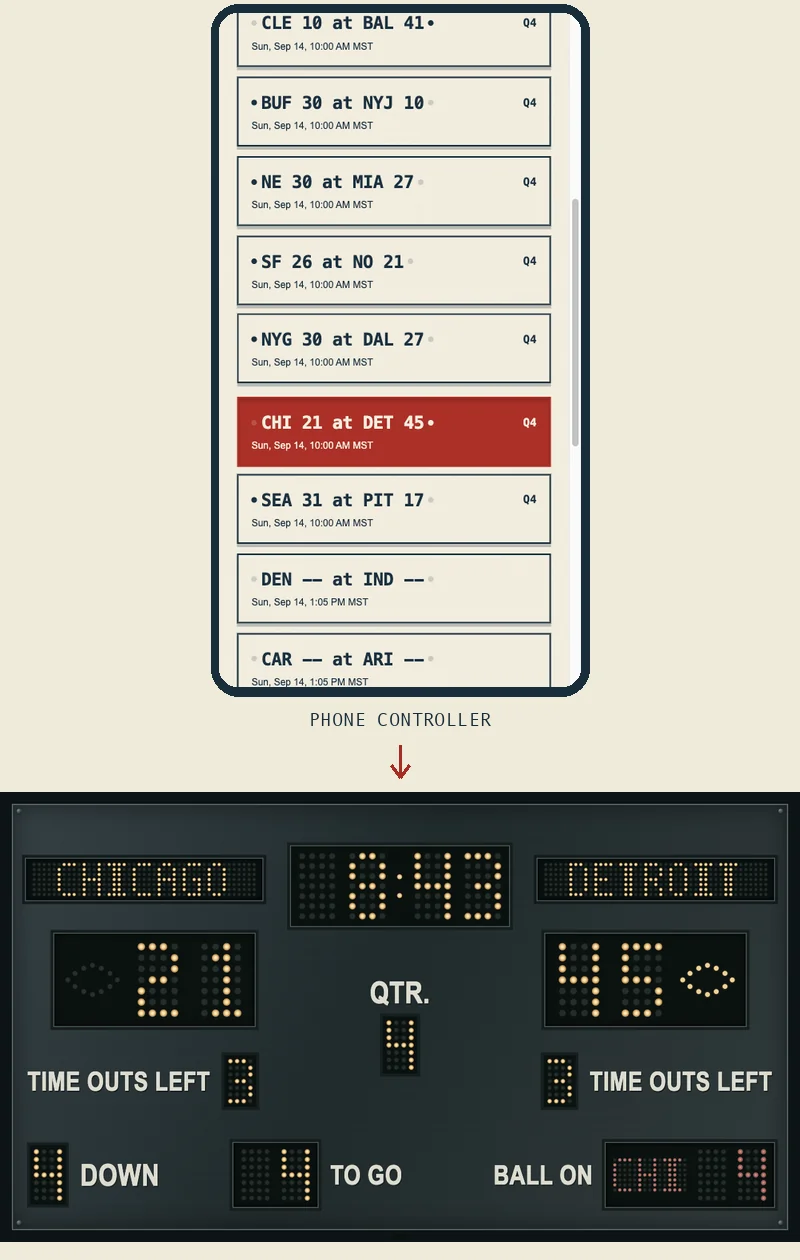
The phone starts with Bears at Lions selected, scrolls up and selects All Games, then selects Bills at Jets. The scoreboard below follows each selection. Historical game data; playback timing is edited for this demonstration.
It feels like game day.
The game on TV. Every score in sight. A scoreboard glowing in the corner of the room.
That's the idea.
Sign in with your email. No password required.
No Boards connected
This controller is not connected to any scoreboards. Click the “Control with a phone” button on the scoreboard you want to control to show the QR code to scan.
Show the QR code
On the scoreboard screen, move the mouse or tap to reveal the controls. Select “Control with a phone.”
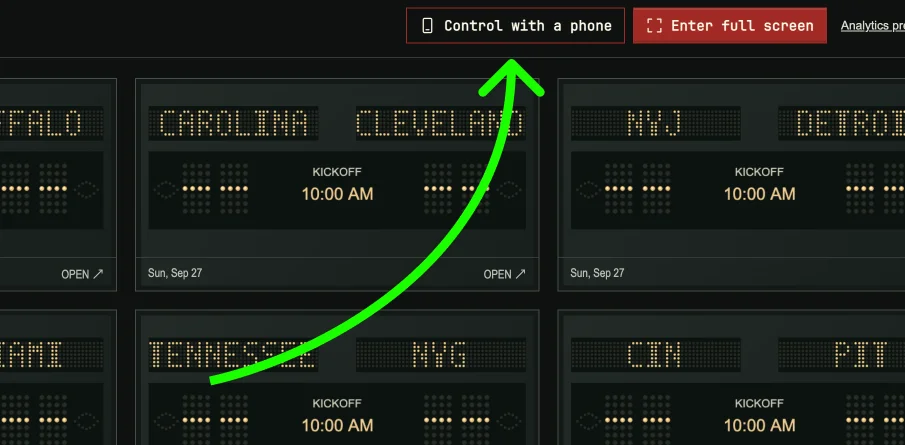
Scan it with your phone
Open your phone’s Camera app and scan the QR code on the scoreboard you want to control. Open the link and confirm the connection.
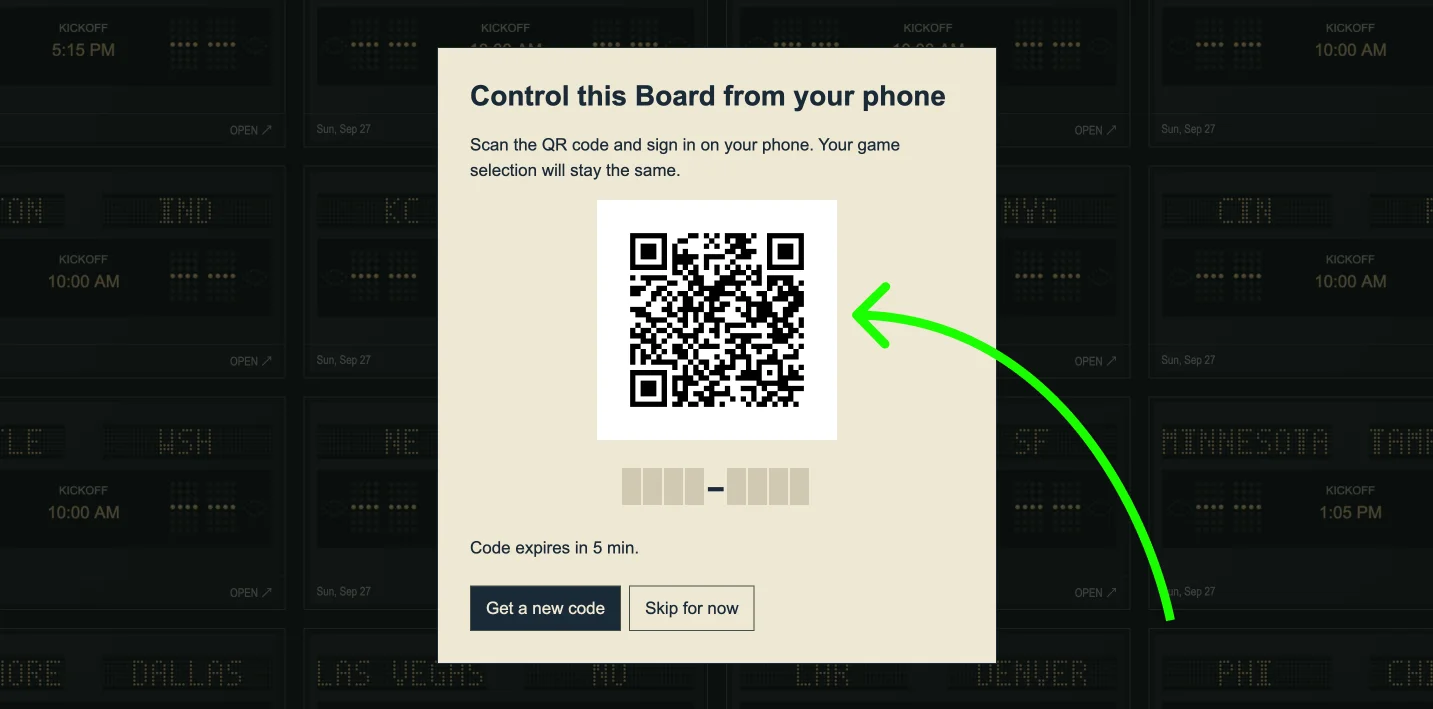
Example only. Scan the code on your scoreboard, not this image.
BOARD LIST
Your Boards
01 / ADD A SCREEN
Where do you want to show your Boca-Board scoreboard?
Use a screen with a web browser, or a computer connected to your TV.
02 / OPEN ON YOUR SCREEN
Open Boca-Board on that screen.
A QR code will appear. Scan it with your phone, or enter the short code below.
Use this computer as the screen ↗CONNECT YOUR SCREEN
Connect this screen.
Enter the TV code, then name the screen so you can find its remote.
Code expired? Choose “Get a new code” on the TV, then enter it here.